Damien Symonds
-
Posts
212,982 -
Joined
-
Last visited
-
Days Won
3,540
Everything posted by Damien Symonds
-
Gosh, this is so difficult. I'm struggling. What does the Curves layer do? How many points on the curve?
-
Is that "Layer 2"?
-

Velvety / Painterly effect v2
Damien Symonds replied to Charliepw's topic in How to achieve a certain look or effect
In Photoshop, add a Levels layer. Hold down the Option key while grabbing the white slider. -
Lovely. I can't wait to hear what she thinks of it.
-
In the half-black-half-white circle icon menu in the Layers panel, it's called "Solid Color". Once you add it, it is called "Color Fill". I've never understood it, I wish Adobe would fix it. I love what you've done. Where are you seeing banding?
-
Sharpening digital files for clients
Damien Symonds replied to SarahStacker's topic in Questions about tutorials and articles
Don't say "it looks plastic" until you've printed one. Crop one to 11:15 as you'd give it to the client, then send it to a lab the way a client would. -
Sharpening digital files for clients
Damien Symonds replied to SarahStacker's topic in Questions about tutorials and articles
Hell no, I'm not saying that. All noise must go. -
Sharpening digital files for clients
Damien Symonds replied to SarahStacker's topic in Questions about tutorials and articles
Nope. You can't sharpen digitals. -
Color warmth don't match
Damien Symonds replied to TinaG's topic in Monitor calibration questions or problems
Ok, you might need to do this. -
Color warmth don't match
Damien Symonds replied to TinaG's topic in Monitor calibration questions or problems
You just used the words "new" and "screen". You hadn't mentioned that in your original post. Is it a new screen, or the same one you've always had? -
Download the PSD I tried a bunch of different artistic filters, and found that Paint Daubs sort of kept some shape, but got rid of the texture sufficiently. However, try them for yourself, you might find another one you like better.
-
Oh really?? Yay! I'll upload the PSD in a moment, stand by ...
-
My ugly hand is next to the sweet newborn smile! :(
Damien Symonds replied to ShannonJoy's topic in Help with editing
@ShannonJoy? -
Color warmth don't match
Damien Symonds replied to TinaG's topic in Monitor calibration questions or problems
Are they the same prints you've always used to check the screen? -
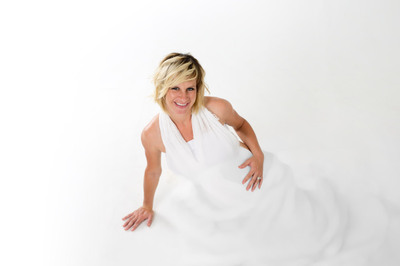
This kind of stuff is really not my forte, I'm afraid. But I had a bit of a play:
-
Covering up cleavage / Making a black top
Damien Symonds replied to Melinda Brett's topic in Help with editing
I dunno, maybe just paint a black layer?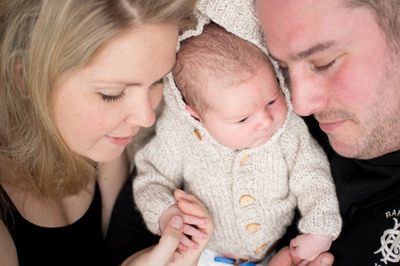
-
Velvety / Painterly effect v2
Damien Symonds replied to Charliepw's topic in How to achieve a certain look or effect
I'm really worried about this, I fear there's clipping in her cheek. -
Covering up cleavage / Making a black top
Damien Symonds replied to Melinda Brett's topic in Help with editing
Yes please. -
If you don't care about the quality of your photos, stick to Lightroom. That's what Lightroom is for. Lots of photos, mediocre quality.
-
Covering up cleavage / Making a black top
Damien Symonds replied to Melinda Brett's topic in Help with editing
Hmmm ... is this SOOR? -
Are you sure you need to? What are you working on?
-
Ok, so if you turn all those layers off, then turn them one again one at a time from the bottom up, is there one (or more than one) which is an obvious culprit for the banding?
-
This is an odd one, for sure. As Sam said, everything in your specs suggests it should run fine. Out of interest, is it the same if you're editing an image which is on the SSD? Is it the same if you push the Whites slider all the way up?
-
No. This is a funny one. In Photoshop, the history function makes sense, even though only unskilled editors need to use it. Things happen linearly in Photoshop. But in raw, nothing happens linearly. At any point, you can go back and re-adjust a certain slider, regardless of what other adjustments you've made since the last time you adjusted that slider. Am I making sense here? There's no need for history in raw. If you want to re-adjust something, just do so.
-
In Bridge, no, there's no way to view a before, except by actually reverting it (right-clicking and choosing "Clear settings"). In ACR, you use the Preview buttons at the bottom right corner of the image, exactly the same as LR. Hell no. You're using proper software now, not a toy. You have to edit like a grown-up. The purpose of raw processing is raw processing. To make a single perfect clean version of the photograph you took. Versions happen in Photoshop.