Damien Symonds
-
Posts
212,918 -
Joined
-
Last visited
-
Days Won
3,536
Everything posted by Damien Symonds
-
Banner size
Damien Symonds replied to margaretbonson's topic in Output - print, websites, Facebook, email, client disk, etc
It doesn't matter. It absolutely does.not.matter. Your master files can be 300, 240, 72, 89, 426, 138265, 9, etc. It's completely irrelevant. It only matters when sharpening for print, and you'll learn about that in the Sharpening Class. -
@Kendra?
-
Banner size
Damien Symonds replied to margaretbonson's topic in Output - print, websites, Facebook, email, client disk, etc
As part of your general workflow, do you mean? -
@Jodie Williams?
-
Banner size
Damien Symonds replied to margaretbonson's topic in Output - print, websites, Facebook, email, client disk, etc
Nerds will chew your ear about PPI vs DPI, but for all practical purposes, they're the same thing, yes. -
Banner size
Damien Symonds replied to margaretbonson's topic in Output - print, websites, Facebook, email, client disk, etc
Excellent. So yes, do exactly what they say. Give them a Level 11 quality Jpeg file, make sure the resolution is 300ppi, but make NO change to the image size. Send them the full-res file that you camera took. -
Banner size
Damien Symonds replied to margaretbonson's topic in Output - print, websites, Facebook, email, client disk, etc
Oh yeah, very vague. Unfortunately, quite common. Do you know if the banner is ONLY going to be your photo? Or will it be part of a design of some sort? -
It's a really difficult one, especially if you've never used gradients before. Download my PSD to see the layers I used.
-
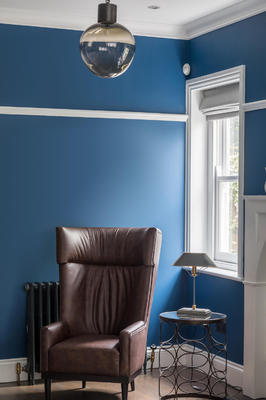
Oh boy, these aren't easy. This is the method you need to use: https://www.damiensymonds.net/preventing-banding-in-backdrops/ Does this look satisfactory?
-
Photoshop
Damien Symonds replied to Glynda horsfall's topic in Photoshop / Elements / Bridge / ACR questions or problems
When Photoshop is open, try pressing the F key a few times. -
Photoshop
Damien Symonds replied to Glynda horsfall's topic in Photoshop / Elements / Bridge / ACR questions or problems
Is it only Photoshop that's different? Do all your other programs still look the same as ever? -
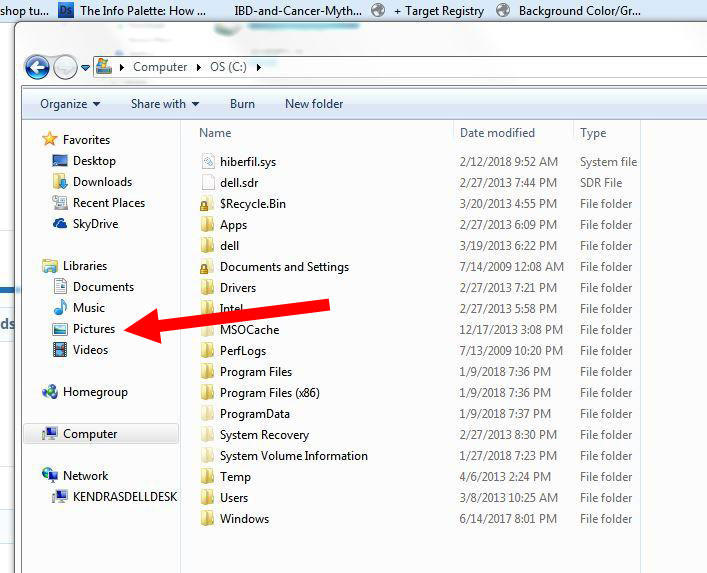
Are you still there, @Kendra? I'm sure we're REALLY close to solving your hard drive issues.
-
scanning pictures
Damien Symonds replied to diamante67's topic in Miscellaneous questions or problems
https://www.damiensymonds.net/scanning-guidelines-for-old-photo-restoration.html -
scanning pictures
Damien Symonds replied to diamante67's topic in Miscellaneous questions or problems
The Epson V line are excellent scanners. But not cheap. Unless you have a LOT of photos for scanning, the lab option might be better. -
scanning pictures
Damien Symonds replied to diamante67's topic in Miscellaneous questions or problems
Right. I mean, it'll do a job ... but it'll be a poor job. -
Yep, that's what I thought. Have you done this?
-
scanning pictures
Damien Symonds replied to diamante67's topic in Miscellaneous questions or problems
No. -
No. Sorry, I can't discuss this here, only in class. https://www.damiensymonds.net/trainingsharp.html
-
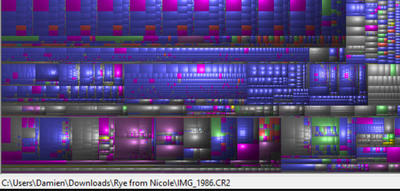
Now, when you hover your mouse over that massive green area, and look in the very bottom left corner of the screen, it will tell you what kind of file it is, and where. For example, on mine, I've hovered over a big folder and found it's a set of raw files that Nicole sent me: Can you tell us what your huge green area is?
-
Click on the C drive in the top panel, then go to the Treemap menu and choose "Zoom In". Then show me another screenshot.
-
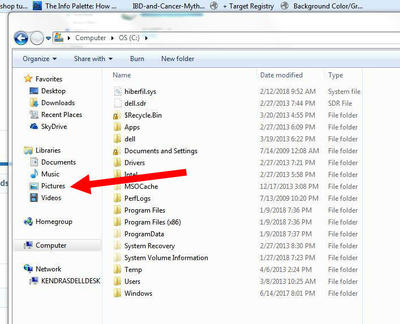
What about the Videos folder? Much in there?
-
That's excellent. We just need to make sure there aren't any anywhere on C drive.
-
Have you done what Brian advised, and move all image files off your C drive? It's still looking quite full.
-
HELP REQUIRED
Damien Symonds replied to Miriam H's topic in Monitor calibration questions or problems
Did you try soft-proofing? -
HELP REQUIRED
Damien Symonds replied to Miriam H's topic in Monitor calibration questions or problems
Are you sure you still can't? I rebooted the server after you said that, it should be ok now.