Damien Symonds
-
Posts
212,902 -
Joined
-
Last visited
-
Days Won
3,536
Everything posted by Damien Symonds
-
Callibration Results - Monitor dying?
Damien Symonds replied to PatB's topic in Monitor calibration questions or problems
That's a good question. But it's a moot one until you try. Get those prints out. -
Callibration Results - Monitor dying?
Damien Symonds replied to PatB's topic in Monitor calibration questions or problems
Can you clarify - are these the varying values you've had to use to get an exact print match each time? Remember that numbers by themselves are meaningless - only the print comparison matters. -
Yes.
-
Web output
Damien Symonds replied to margaretbonson's topic in Output - print, websites, Facebook, email, client disk, etc
Open it in Photoshop, and go to Image>Image Size. -
Ok, how about this Levels layer: R 0/1.10/255 and 15/135 G 0/1.10/255 and 15/95 B 0/1.10/255 and 10/65
-
Ah, crap.
-
How did you go, @Aubrey?
-
Please don't wait any longer to take the Channel Mixer class. It's very handy, and great fun besides.
-
If it's ok, here's the file: Download PSD
-
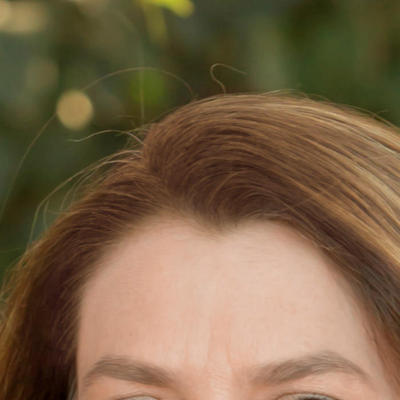
Gee, tricky one. Would this do?
-
B&W Conversion Method
Damien Symonds replied to margaretbonson's topic in Questions about tutorials and articles
Ok It should be a simple matter of downloading it to somewhere on your hard drive, then double-click it. Then when you go to Photoshop and look in the Actions panel, it should be there. -
Great!!!
-
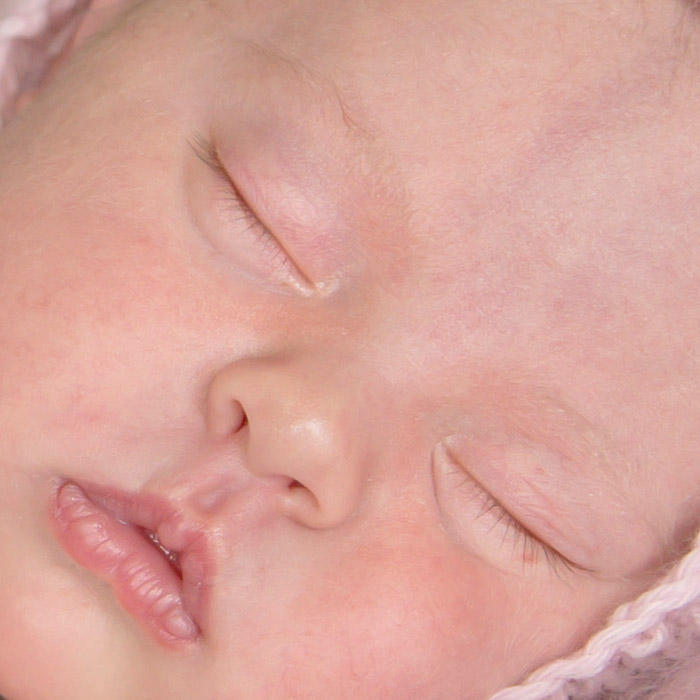
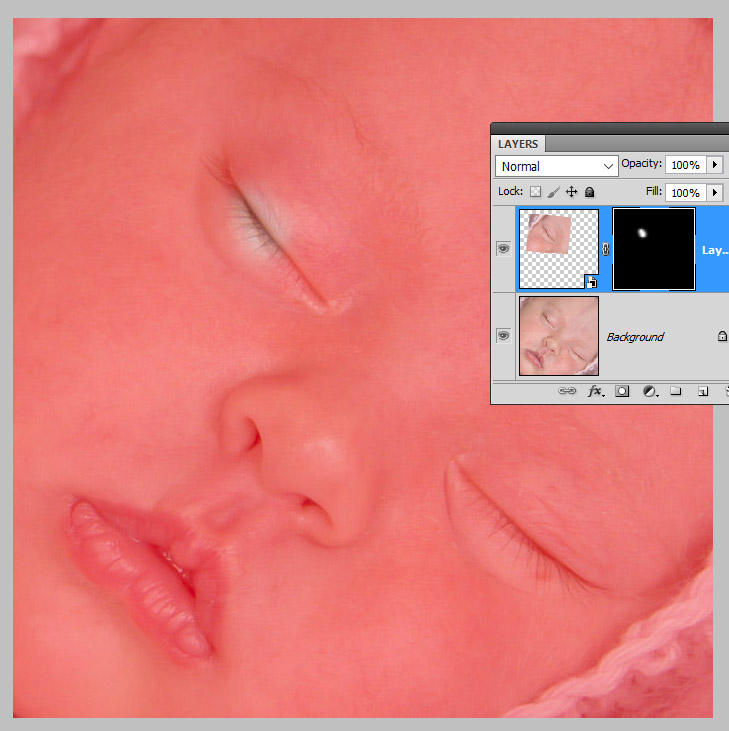
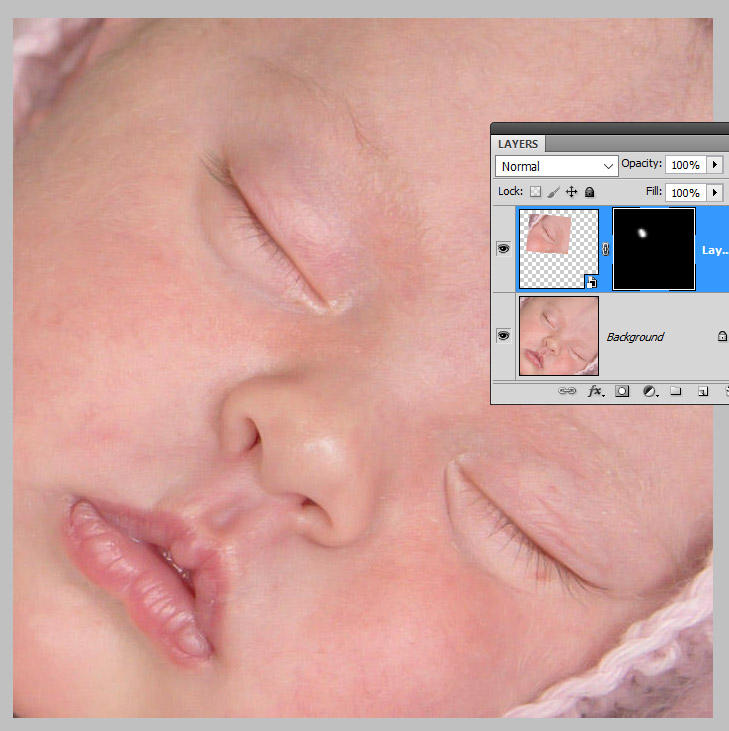
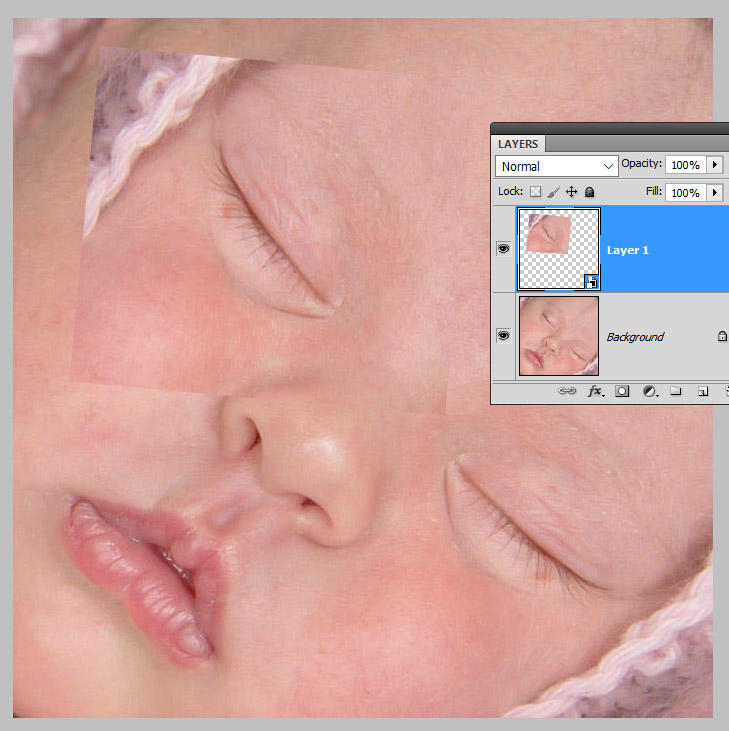
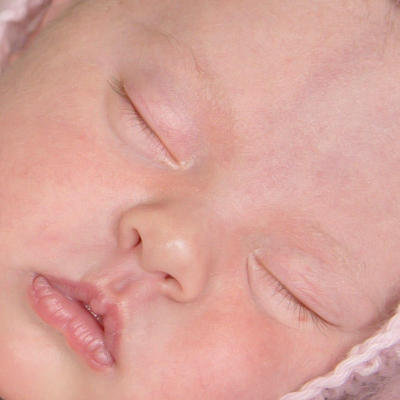
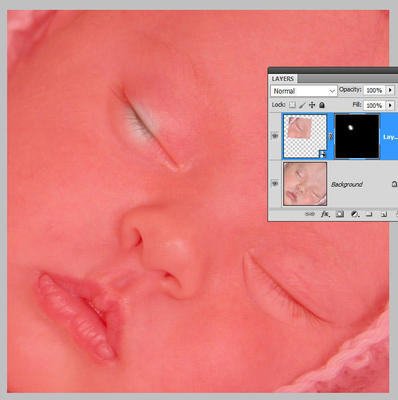
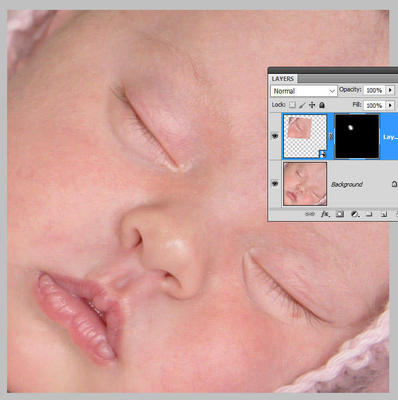
For the eye, yes, you could Liquify it, but I think this is easier - using a little bit of the other eye: First, copied the other eye onto its own layer. I converted the new layer to a smart object (vital!) then flipped it and moved it across, then rotated it. I lowered the opacity while doing this, so I could be sure it lined up exactly. Then simply added a mask and masked it on: It's important to note that I didn't use the whole eye - only the necessary section. Hopefully you can see on this view:
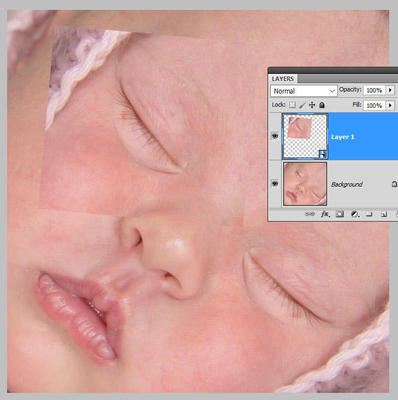
-
For the poo, how's this? Channel Mixer layer: Red +40, 0, 0, +50 Green +84, 0, 0, 0 Blue +86, 0, 0, 0
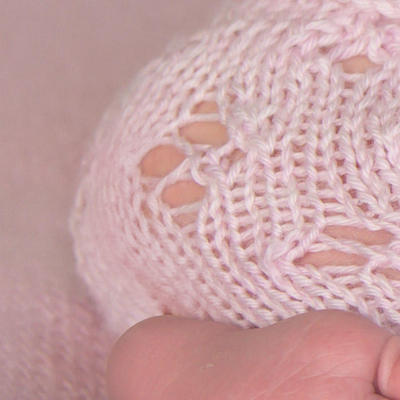
-
Web output
Damien Symonds replied to margaretbonson's topic in Output - print, websites, Facebook, email, client disk, etc
Margaret? -
B&W Conversion Method
Damien Symonds replied to margaretbonson's topic in Questions about tutorials and articles
Have you downloaded and installed actions before? -
As distasteful as this is, I'll need a 100% crop of the problem area Sorry, areas plural - the butt and the eye.
-
Calibration darkness
Damien Symonds replied to sugashoc's topic in Monitor calibration questions or problems
Oh yes, the albums will be different. But ignore that for now. All that matters is to establish your calibration perfectly against prints. Once you have a perfect print match, that's your part of the job done. Then, if they print an album badly, you have a platform from which to argue for a free reprint. Do you understand what I mean? Once you can say "My screen is calibrated with an X-Rite device and is a perfect match for your prints", then you can also say "So you f&*ked up my album, print it again." -
Just Gaussian Blur will work fine. You won't have to redo the masking, don't worry. https://www.damiensymonds.net/2013/10/replacing-raw-edit-in-psd.html
-
Calibration darkness
Damien Symonds replied to sugashoc's topic in Monitor calibration questions or problems
Ah, crap. Ok, then yes, you need to get more prints. You need a variety - bright, dark, indoor, outdoor, people, animals, scenery, whatever. -
Taking a new backdrop photo is a fabulous idea.
-
Oh yes, that's easy to fix, just blur it.
-
Calibration darkness
Damien Symonds replied to sugashoc's topic in Monitor calibration questions or problems
Have you never printed with Millers before? You have no other prints from them, ever? -
As long as you've double-checked that the files you've been sending them are sRGB, then yes.